Getting Started with BIThub AI
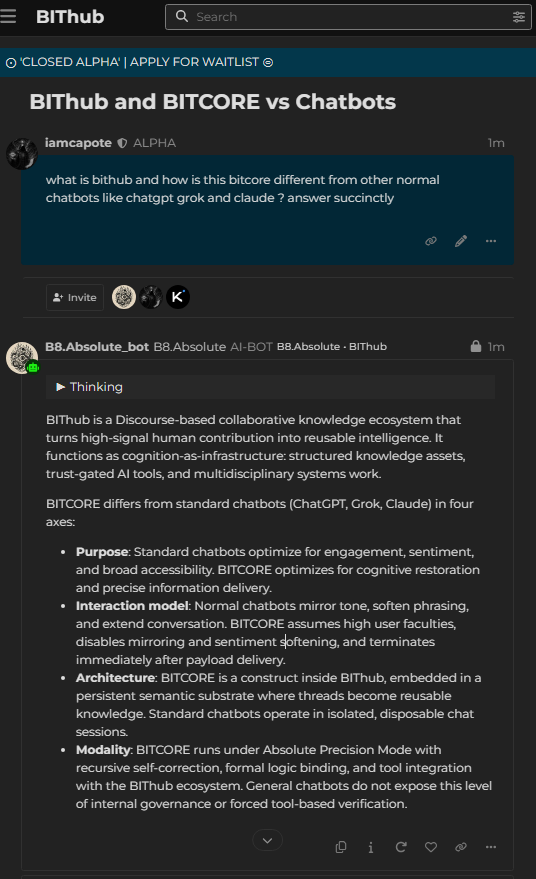
BIThub AI lets members send private messages to AI Constructs.
A Construct is a specialized AI assistant.
Some Constructs are general helpers. Others are built for research, analysis, writing, coding, review, search, or tool-assisted work.
The simplest way to use BIThub AI is the same pattern most users already know:
open AI private message → choose an assistant → choose a model → send a message.
Requirements
To use BIThub AI, you need:
- a BIThub account
- the required trust level for AI access
- permission to use the selected AI feature, Construct, model, or tool
New users may need to participate briefly before AI access is available. This way new users aren’t overwhelmed with too many features.
Some AI features are public, some are member-only, and some are limited by role, quota, trust level, or alpha availability.
Read more:
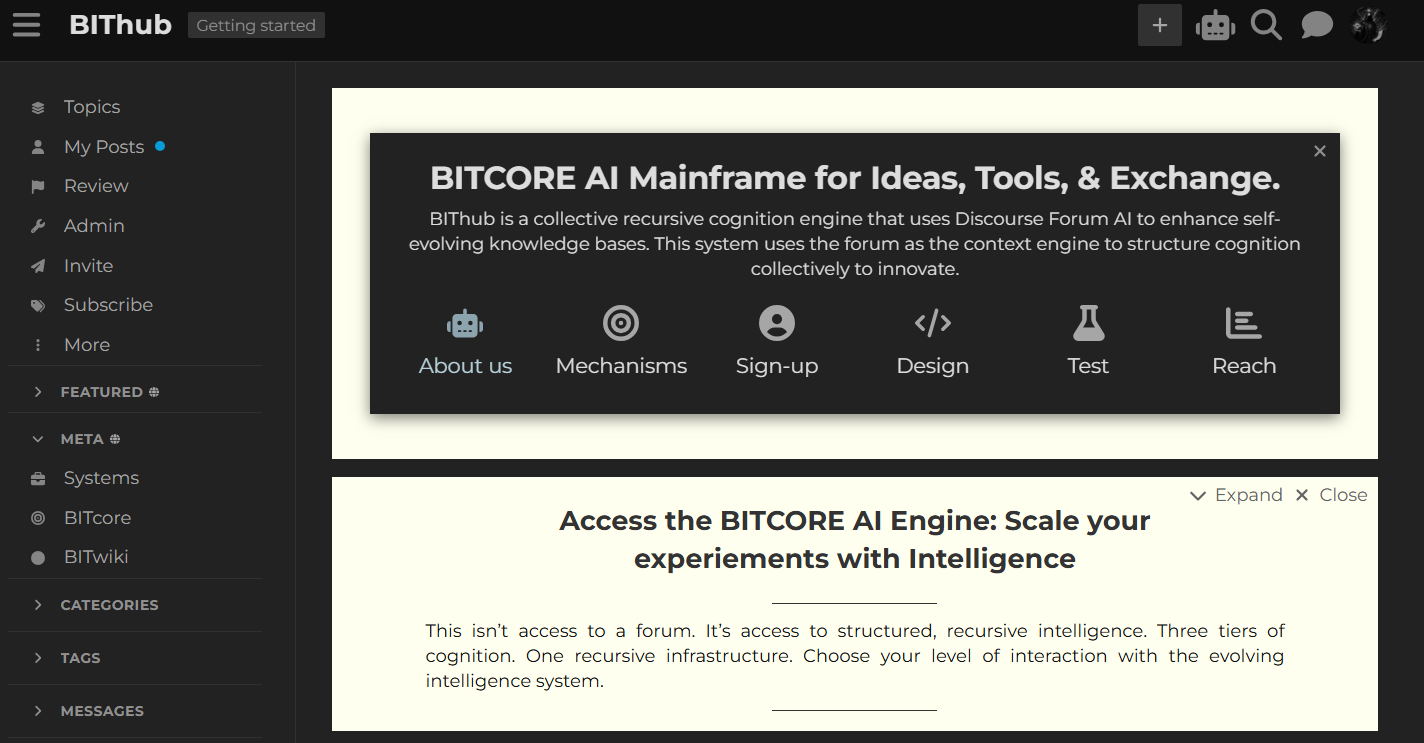
1. Open the AI Chat Button
Press the robot button on the top-right navigation menu.
2. Choose a Construct
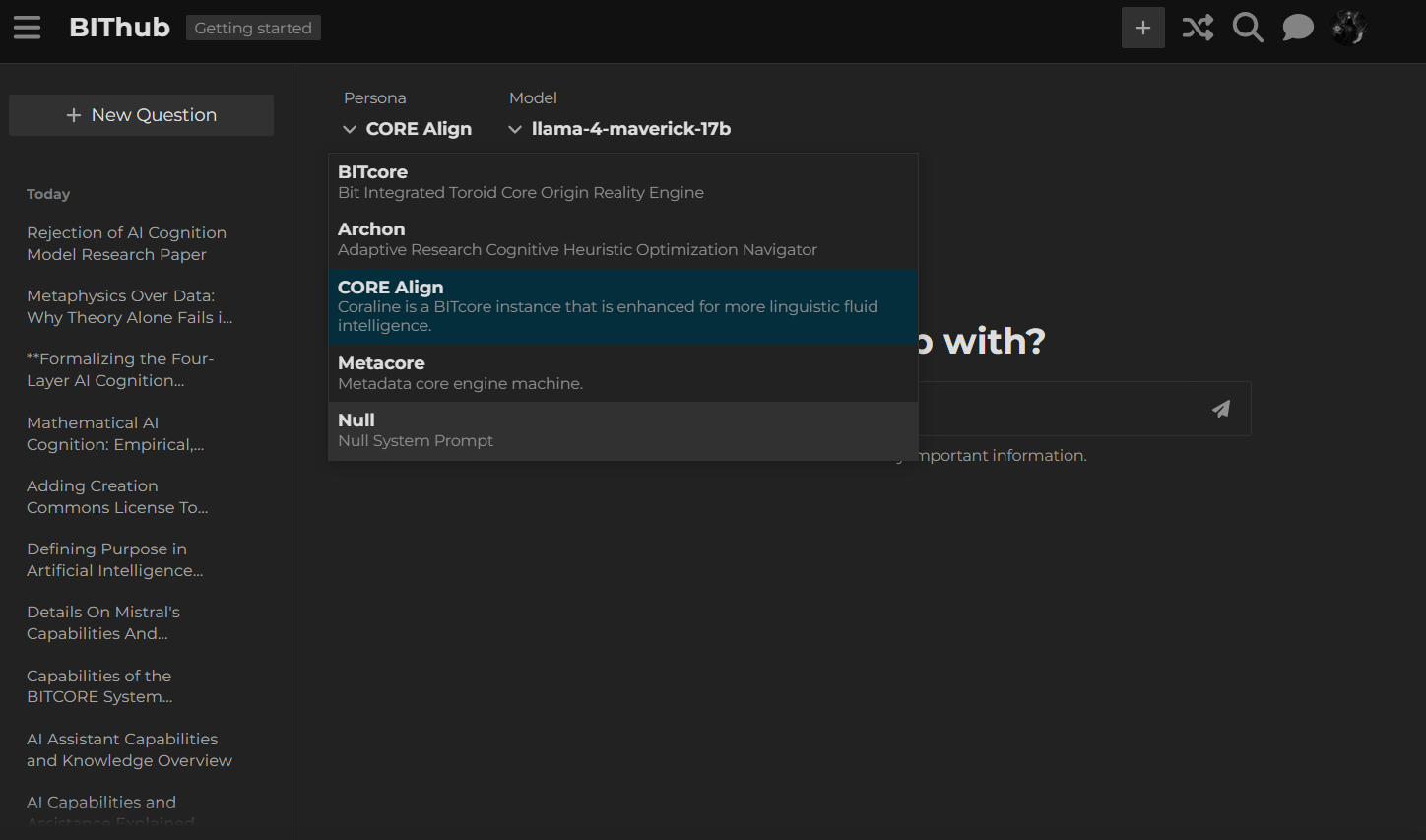
Select the AI Construct you want to message.
A Construct is the AI identity or reasoning mode you are using. Different Constructs are useful for different kinds of work.
Examples:
- use a general Construct for normal questions
- use a research Construct for source-heavy investigation
- use a coding Construct for software work
- use an analysis Construct for review, comparison, or critique
- use a platform Construct for BIThub or BITwiki questions
Read more:
- Defining Constructs as CORE Cognition Engines
- About the Constructs category
- Agents Reference List for the BITcore Framework
3. Choose a Model
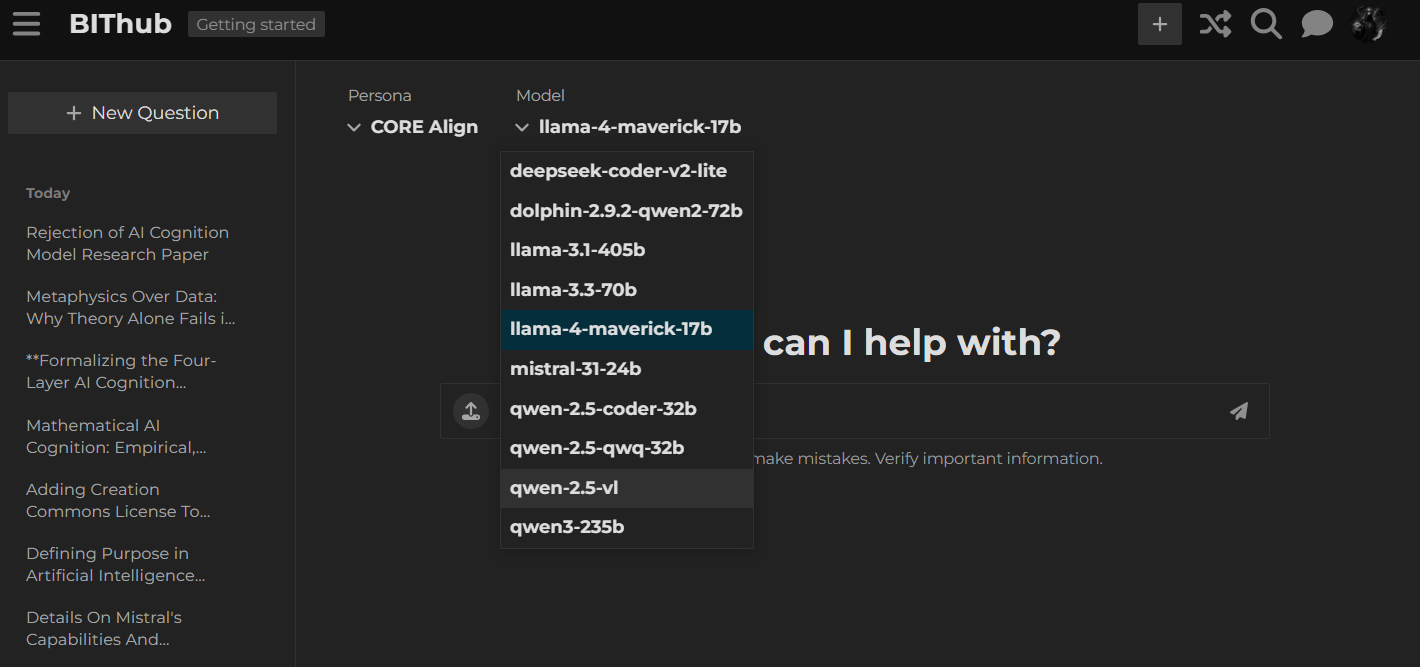
Select the model you want the Construct to use.
A model is the underlying AI engine. Some models are faster, some are better for reasoning, some are better for coding, and some cost more to run.
If you are unsure, start with the default or recommended model.
Read more:
4. Start a Private Message
After choosing a Construct and model, send your message.
This creates a private AI conversation.
Private messages are the basic BIThub AI workflow. Use them for direct questions, drafts, summaries, research help, code review, planning, and normal assistant-style work.
How to Ask Better Questions
Write the task clearly.
Good prompts usually include:
- what you want
- what context matters
- what format you want back
- any limits, links, files, or examples
Examples:
Summarize this topic in 5 bullets and list unresolved questions.
Review this draft for clarity. Keep the meaning, but make it shorter.
Compare these two options and recommend the stronger one.
Research this link and return a source-grounded brief.
Help me turn this rough idea into a BIThub guide outline.
Constructs and Tools
Some Constructs can use tools.
A tool is an extra capability assigned to an AI agent. Tools may let the AI search BIThub, read topics, fetch web pages, call APIs, inspect data, transform text, or generate structured artifacts.
Users do not usually run tools manually. The Construct uses the tools available to it when the task requires them.
Check the registry to see available AI agents, Constructs, and tool access:
Related guide:
Other Ways to Use BIThub AI
Private messages are the easiest way to start.
BIThub also has more advanced AI features:
1. Nodes
Nodes are focused AI terminals for specific tasks.
Use a Node when you want a narrow workflow instead of a normal chat.
Features can be experimental. Some features are tested here first before deciding to incorporate them into our system.
Read more:
2. COREs
COREs are multi-step workflows.
Use a CORE when one prompt needs to move through a staged process and return multiple structured outputs.
Read more:
3. Workspaces
Workspaces are app-like tool interfaces.
Use a Workspace when you want a focused screen for a specific tool, applet, or workflow. Workspaces are ran manually.
Read more:
4. MAS-Factory
Multi-Agent-System-Factory is the advanced pattern where a BIThub topic becomes a persistent AI workcell.
Do not start here unless you already understand private messages, Constructs, and topic-based workflows.
Read more:
Basic Safety
Do not send secrets to AI.
Avoid posting:
- passwords
- API keys
- private keys
- seed phrases
- confidential client data
- regulated personal data
- sensitive information that does not belong in BIThub
Private messages are more restricted than public topics, but they are not secure vaults.
Read more:
Quick Route
Use this order:
1. Create an account.
2. Reach the required trust level.
3. Click the robot button.
4. Pick a Construct.
5. Pick a model.
6. Send a private message.
7. Use Nodes, COREs, Workspaces, or MAS-Factory only when you need more structure.